Tutorial
Outline
- What is DrosOmics?
- About this tutorial
- How can I select a genome of interest?
- How can I select tracks of interest?
- What can I search for my gene of interest?
- Case study: copy number variant in the Cyp6a17 - Cyp6a23 gene region
- Downloading track data
- Saving and sharing the current browser instance
- Visualize custom tracks (advanced)
- Contribute to DrosOmics
- Extra help
1. What is DrosOmics?
DrosOmics is a population genomics-oriented browser that compiles genomic and functional data for 52 genomes of D. melanogaster spanning 32 locations worldwide. This browser is based on the recent version of JBrowse 2 (Buels et al., 2022), that allows the visualization of multiple genome assemblies simultaneously and thus directly benefiting comparative genomics analyses. For the first time, we provide the complete landscape of transposable elements (TEs) for 52 genomes and integrate them with functional -omics data (RNA-seq, ChIP-seq and ATAC-seq) generated from the same natural populations.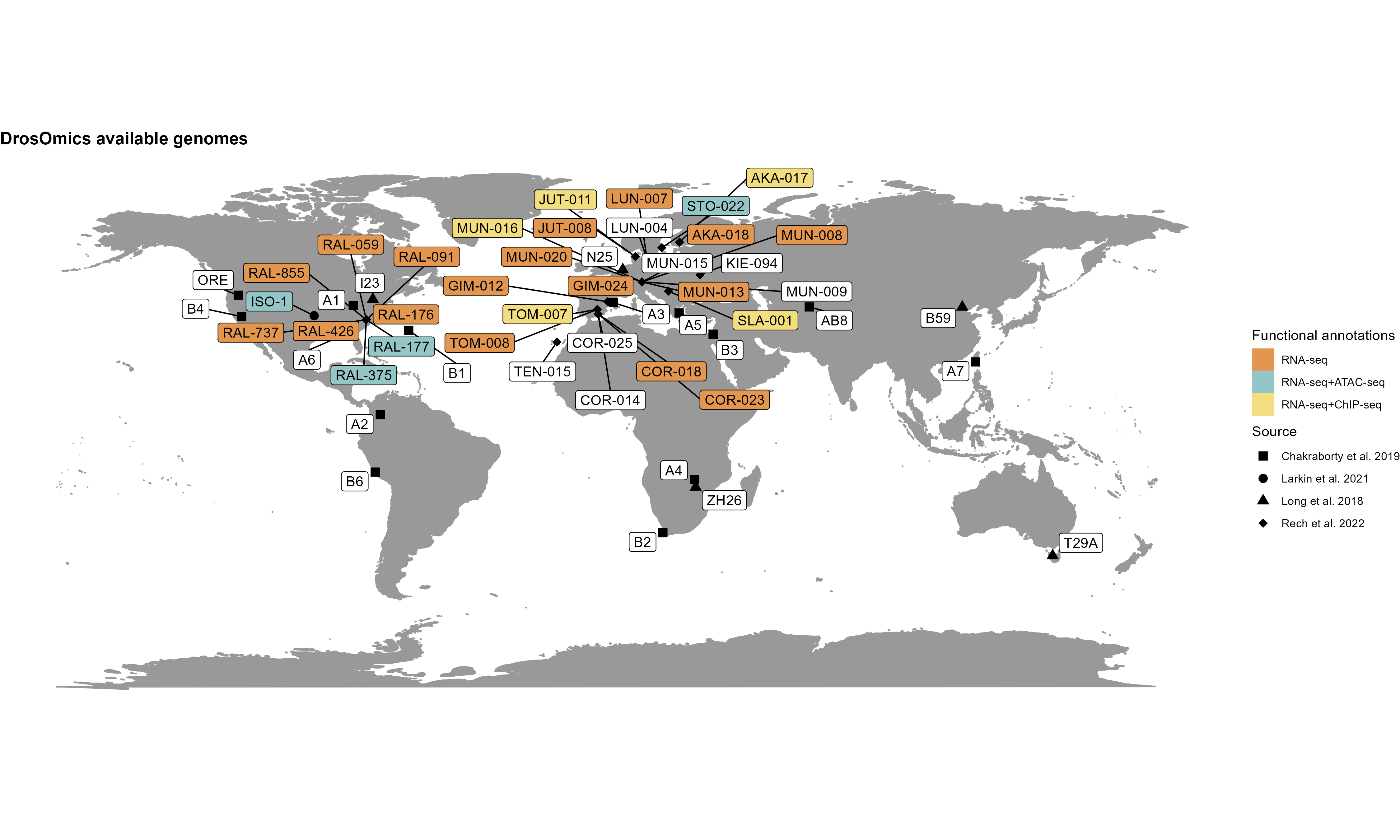 For a more detailed explanation of the source data, how it has been processed, and a description of all the available tracks, we recommend reading through the Data description, and Tracks description pages, as well as the publication: Coronado-Zamora, M., Salces-Ortiz, J. and González, J. (2023) DrosOmics: A browser to explore -omics vriation across high-quality reference genomes from natural populations of D. melanogaster. Mol. Biol. Evol. 40:4, msad075..
Citation
If you use the browser to retrieve data compiled in DrosOmics in your research, please cite the article: Coronado-Zamora, M., Salces-Ortiz, J. and González, J. (2023) DrosOmics: A browser to explore -omics vriation across high-quality reference genomes from natural populations of D. melanogaster. Mol. Biol. Evol. 40:4, msad075, and the original paper where the data was described.
2. About this tutorial
DrosOmics is designed to allow the simultaneous display of different genome assemblies of natural populations of D. melanogaster, and thus helping in the visualization of homologous regions, as well as in the designing and the testing of hypotheses from a population genomics perspective. Below there are some examples of questions that can be answered using DrosOmics. Questions are sequential and the whole guide constitutes an example of how to analyze a specific region of the genome between two natural strains. The region of interest in this tutorial is the region including two genes from the cyp family, a gene family that is well-known for their role in insecticide resistance (Kang et al., 2022 and Carareto et al., 2014). In particular, we will navigate to a region containing genes Cyp6a17 and Cyp6a23. Chakraborty et al. (2018) and Rech et al. (2022) described that some fly populations harbor copy number variants (CNVs), that could be associated with TE insertions. In this tutorial we will learn how to use DrosOmics to visualize this region in two genomes from flies collected in the same geographical region: Tomelloso (Spain).3. How can I select a genome of interest?
When you access DrosOmics for the first time, the default session will display an homologous region for two different strains: AKA-017 (Akaa, Finland) and TOM-007 (Tomelloso, Spain). For this tutorial, we will analyze two genomes from Tomelloso. Therefore, we can close the view corresponding to AKA-017 (by clicking the × at the top right of its assembly display panel). To open a new genome, go to the menu and click Add > Linear genome view.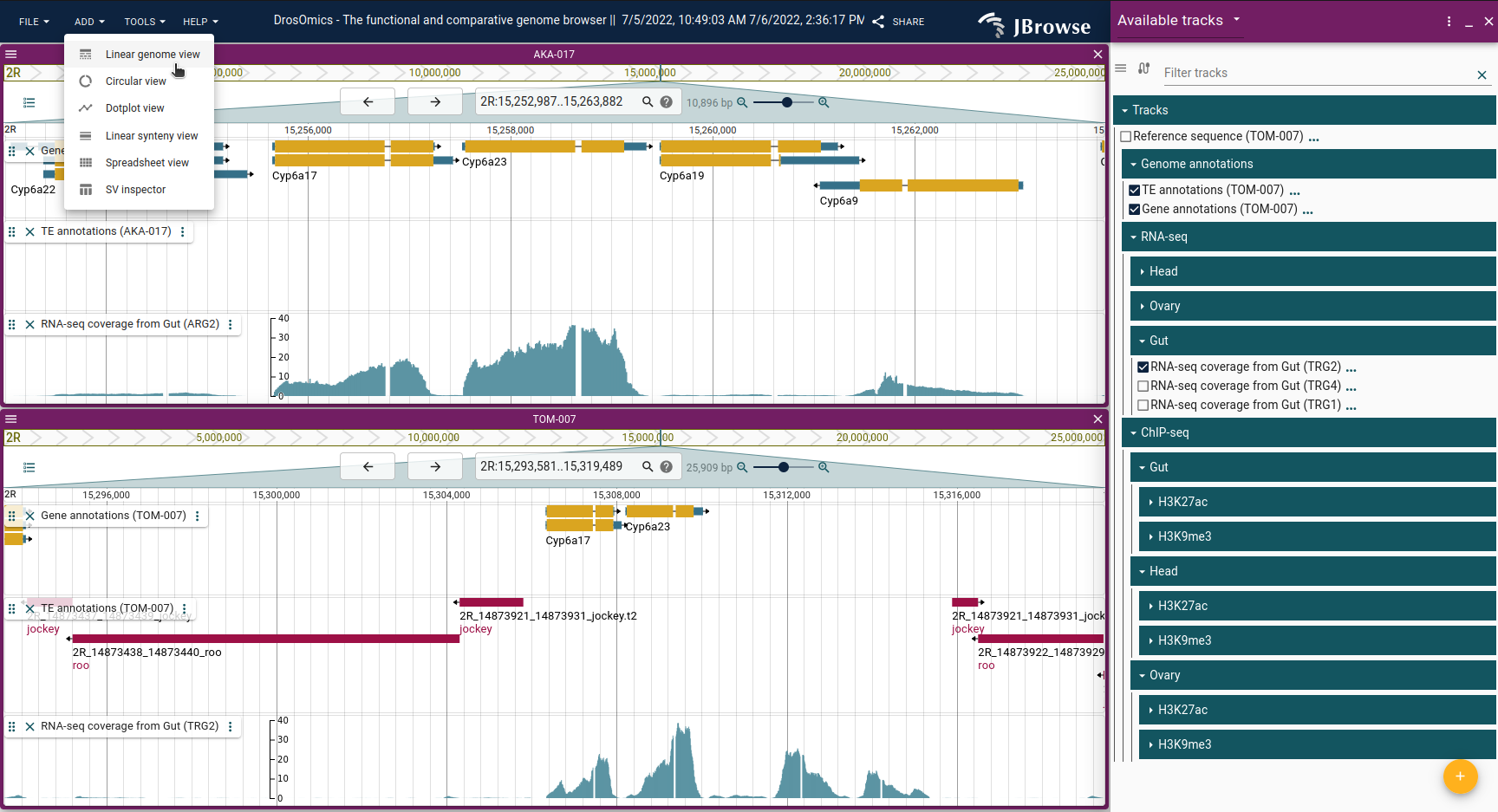 A new menu will appear with a drop-down menu displaying the 52 genomes available in DrosOmics. For our analysis, we will choose the other Tomelloso genome available: TOM-008.
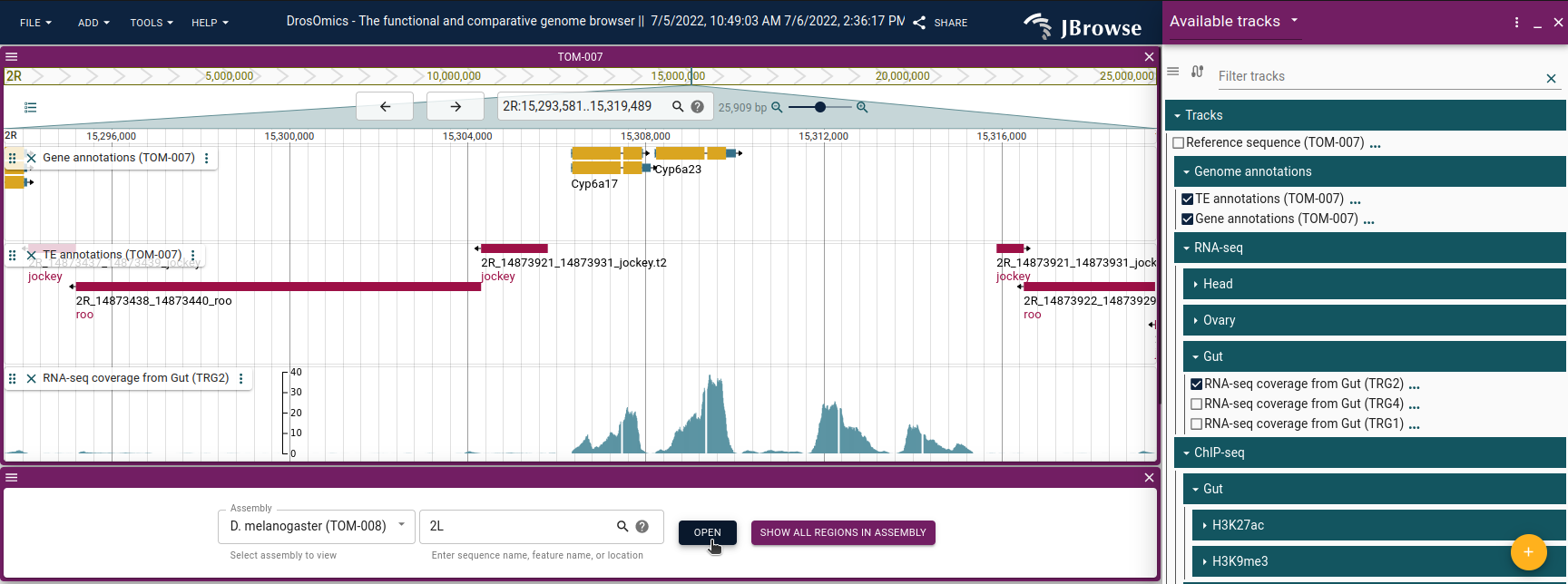 Step-by-step guide:
- Close the overviews of the genomes you are not interested in by clicking the ×.
- Go to Add > Linear genome view and select your genome of interest to visualize it.
4. How can I select tracks of interest?
By default, no information will be displayed for the selected genome because there are no tracks activated.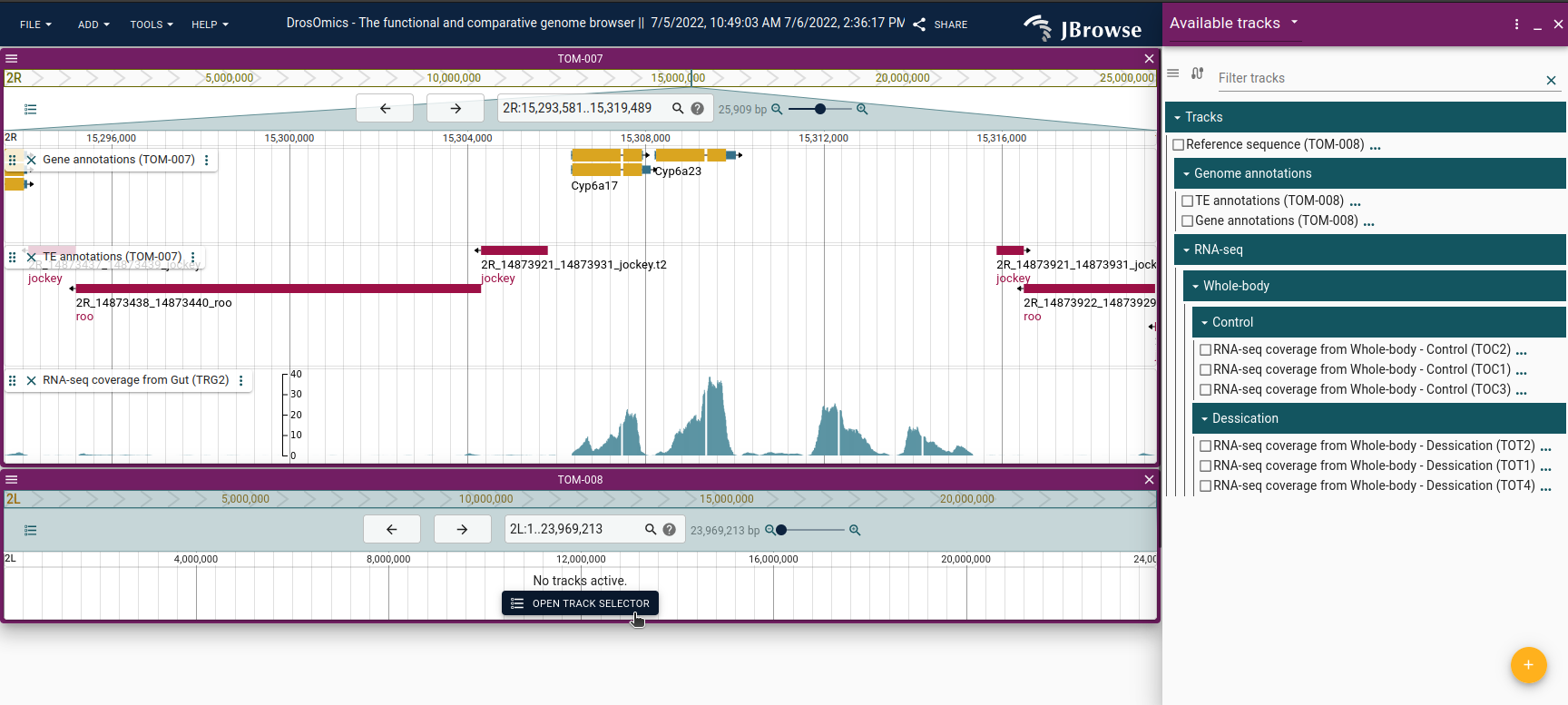 To activate a track, click on the Open track selector button. Alternatively, this can be done by clicking in the icon, located on the left side of the assembly display panel.
The track selector panel will be displayed on the right, with all the available tracks that can be activated for that particular strain. Because we are interested in the region surrounding gene Cyp6a17 and the TEs of that region, we will activate: (1) the Gene annotations (TOM-008) and the TE annotations (TOM-008) tracks under Genome annotations category and (2) RNA-seq coverage from Whole-body - Control (TOC2). Note that there are three tracks under Control, because three biological replicates were performed for each experiment (Check the Tracks description page, under the Help menu, for further information).
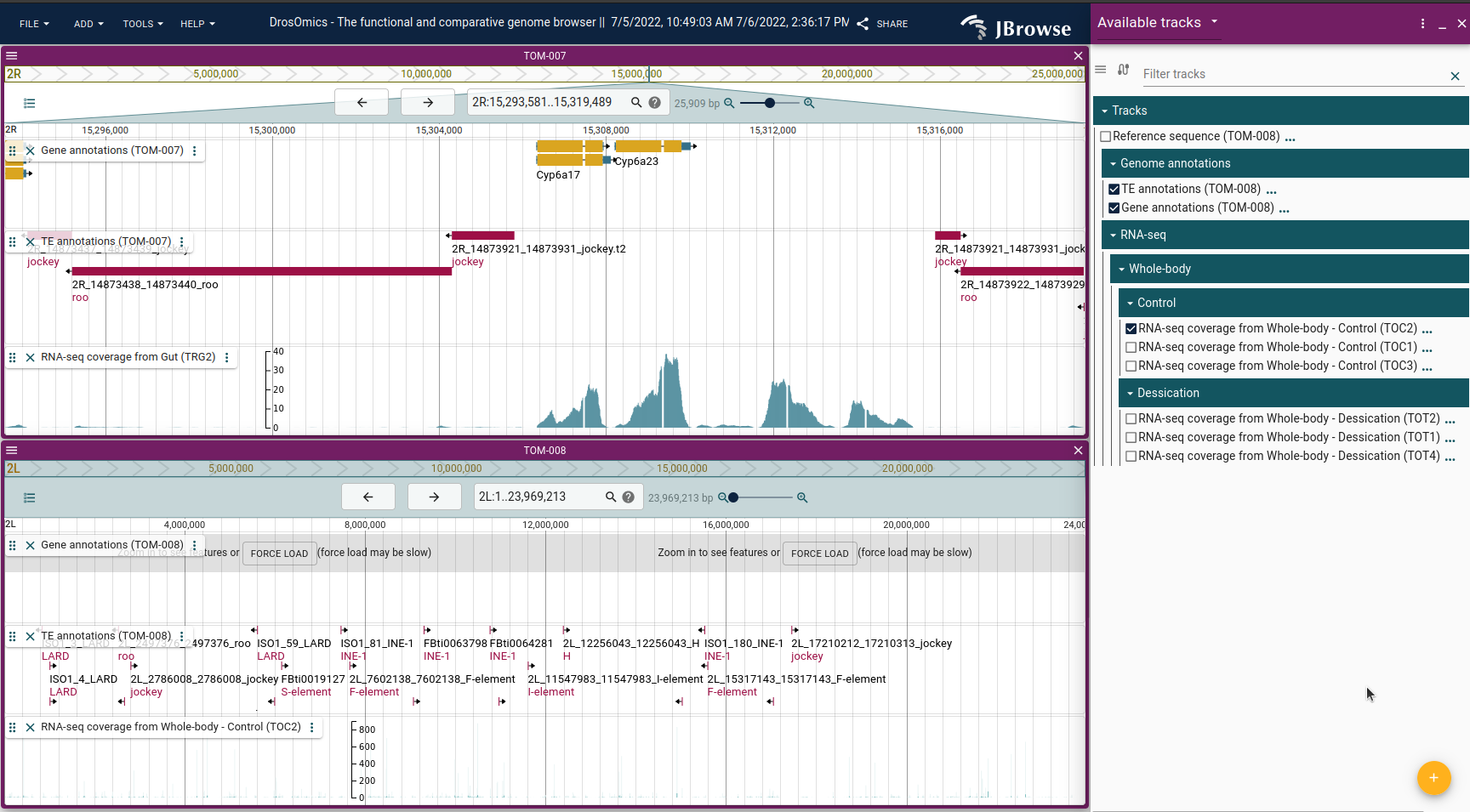
- Click on the Open track selector button or the icon to open the track selector.
- Click on the boxes to select your tracks of interest.
5. What can I search for my gene of interest?
You may have noticed that, by default, we are displaying the whole chromosome 2L when accessing a genome. This is the reason why tracks cannot be loaded once picked from the track selector: they would display too much information to be properly handled by the browser. We can now use the searcher box, located in the main navigation menu, to look for the region of interest. We have different methods: (1) writing the coordinates (in the format chromosome:start-end), (2) writing the gene name (either the FlyBase id, e.g.: FBgn0015714, or the gene symbol, Cyp6a17), (3) writing the TE name (either the FlyBase id, e.g.: FBti0063032, or by de novo TE name as given in Rech et al., 2022). Because we are interested in the region of the Cyp6a17 gene, we will type its name in the search box and click it from the drop-down menu that will appear. By default, the browser will be showing just the region containing the Cyp6a17 gene, and since we are interested in the surrounding region too, we will click the zoom out icon () or use the slider to display a broader region, and use the arrows (), if needed, to adjust the view, until we display the Cyp6a17 gene and some of the genes surrounding it. We can also use the mouse to drag in the region that we want to display.
- Either type the genomic coordinates of interest (e.g.: 2R:14,959,252..14,966,399) and press enter or the gene name (e.g.: Cyp6a17) in the searcher box and click it.
- Use the main navigator panel to move, zoom in or zoom out the selected region.
6. Case study: copy number variant in the Cyp6a17 - Cyp6a23 gene region
By completing the previous steps explained in sections 3 to 5, we are now ready to answer our main question: do we have evidence of CNVs in these genomes? Note that the TOM-007 genome already had the region of the gene Cyp6a17 pre-loaded, and therefore, we can now easily compare the same region for two genomes.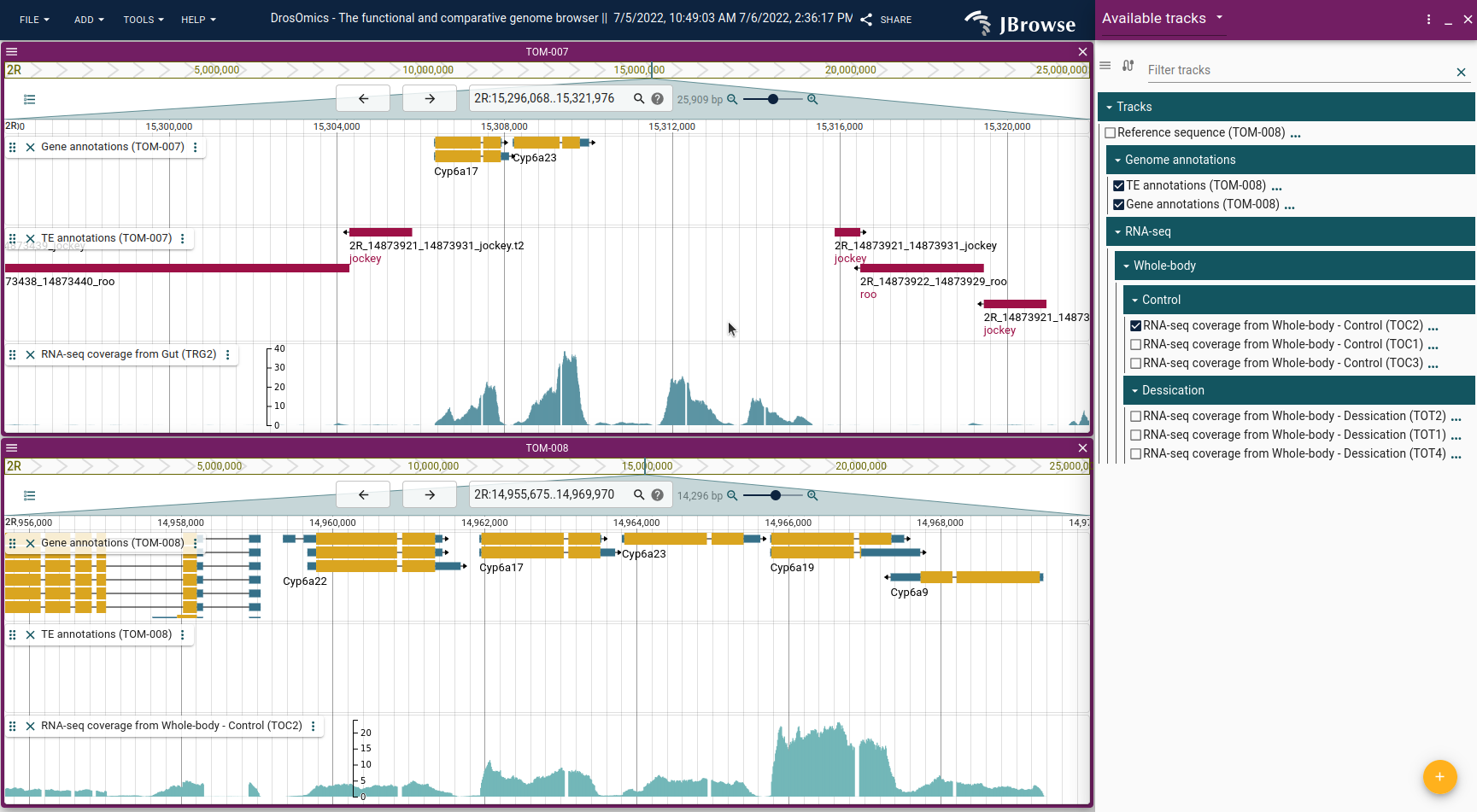 You can observe that TOM-007 has different TE insertions that are not present in TOM-008. You can also observe that there is a region in TOM-007, with no gene or TE annotations, that shows evidence of expression in the track of RNA-seq. If we inspect this same region in TOM-008 there is no evidence of additional genes suggesting that there is a CNV in TOM-007. If you take a closer look at the RNA-seq coverage profile of the two new genes present in TOM-007, you will see that the exon-intron structure inferred from the expression profile resembles that of Cyp6a17 and Cyp6a23. Moreover, Rech et al. (2022) found that all populations that have the insertion of TE “2R_14873437_14873439_jockey” showed this CNV.
7. Downloading track data
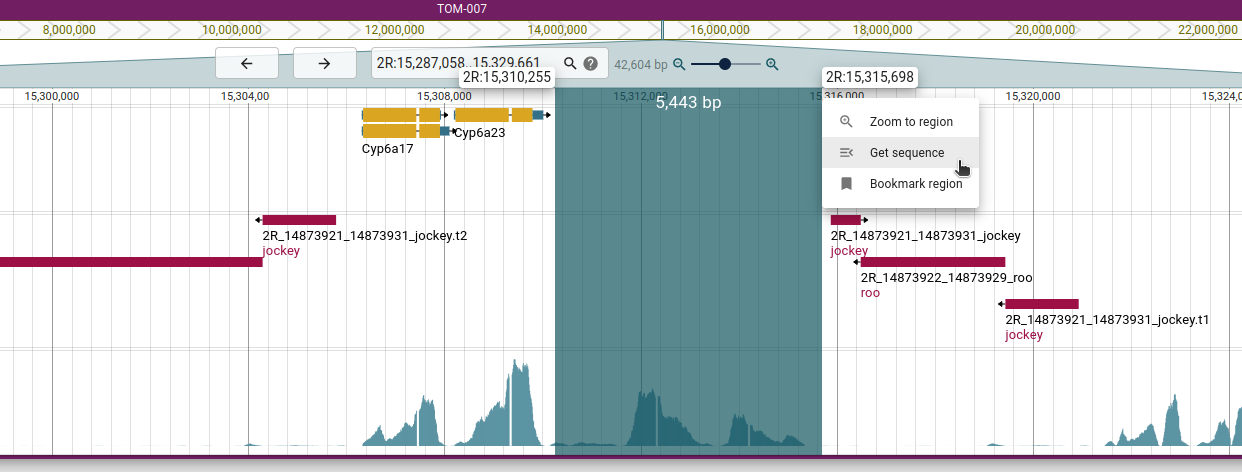
If you are interested in the data that the browser is displaying, we have provided a Directory page, under Tools > Download data tracks, where you can download all tracks currently displayed in the browser. Check the page under Help > Tracks description to get details on what are the data types and formats.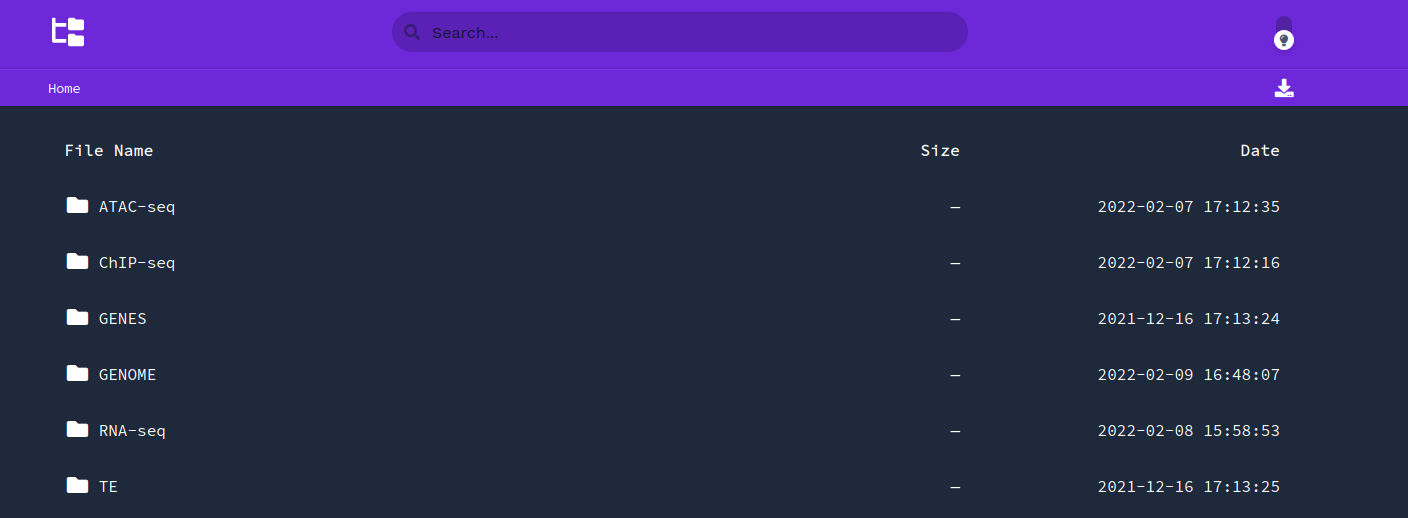 On the other hand, if you are interested in a particular sequence of a strain, you can rubberband the overview scale bar, and a new menu will appear that will allow you to get the selected sequence in FASTA format.
8. Saving and sharing the current browser instance
DrosOmics allows saving any particular browser instance to be shared or visualized later. There are several options to do this. One is through the File > Save session option. All the user saved sessions will be stored and can be accessed by clicking in File > Open session… and restore a particular instance of the browser.To share the current browser instance with others, you can use the Share button (), in the top-center, and it will generate a URL that can be easily shared.
 Finally, the browser also allows saving the current view of the browser as a SVG figure, by clicking the icon and selecting Export as svg.
9. Visualize custom tracks (advanced)
To upload and visualize your own tracks, you can go to Track > Open track… from the navigation menu located in the top-left area of the browser interface. You can also add new tracks by clicking the yellow icon in the bottom-right of the track selector panel. Next, browse your local file or paste a remote URL in the corresponding box and confirm the track type and customize the display options.10. Contribute to DrosOmics
If you want DrosOmics to incorporate your own data (e.g., de novo genome assemblies, functional -omics datasets), please contact us: josefa.gonzalez@csic.es. The following table indicates the preferred format for each data type:| Data | Format |
|---|---|
| Genome assembly from long-read sequencing* | FASTA file |
| Genome annotations (transposable elements, genes, etc.) | GFF3 file |
| RNA-seq data | BAM file Reads must be aligned to a genome assembly available in DrosOmics, or to a new provided one. |
| ChIP-seq data | bigWig file of the fold-change signal over control (MACS2 output) bed file of the called peaks (MACS2 output) Reads must be aligned to a genome assembly available in DrosOmics, or to a new provided one. |
| Other -omics data | Contact us for new data types not included in DrosOmics |
*For genome assemblies obtained from short-read sequencing technologies, we encourage sending them to DEST browser (https://dest.bio; Kapun et al. 2021) which is maintained by the Barbadilla lab.
DrosOmics will be updated every six months to add new data generated by the González lab or provided by the community.
Current release: DrosOmics 1.0.